Grade control
The Grade Control screen allows for the import of grade control data. Grade control data contains spatial boundaries depicting the grade control shapes and grade control qualities and quantities.
The grade control data complements the geological block model data in XECUTE. During the reserving process, activity areas are reserved first against the grade control shapes and any remaining volume of material not covered by grade control is reserved against the underlying block model, which may in turn be overridden by block model overrides. Any activity areas created before the grade control shapes are imported will be re-reserved if they overlap the new grade control shapes.
Overlapping grade control shapes are not supported as XECUTE can not determine the correct one to use and will just use the first one returned from the database.
To manage a site's grade control files, go to Config > Site Edit  > Grade Control
  .
.
Import grade control data
- To add grade control shape data, in the New Grade Control Shapes section, click the Select Files tab, then click
 .
.Supported file formats (3D solids) include:
- AutoCAD DXF (*.dxf)
- Datamine Triangulation File (*tr.dm)
- Minex Triangulation (*.tr5)
- Stereolithography Binary Tri-surface (*.stl)
- Surpac DTM file (*.dtm)
- Vulcan Binary Tri-surface (*.00t)
- Well Known File (*.wkt, *.wkb, *.ewkt, *.ewkb)
-
Click Validate and Continue in the right panel to move to the Attributes tab.
The Attributes tab lists all fields found within the imported grade control data. The attribute grid shows the name, data type and sample data of the grade control shape. If any of the imported fields are missing values a Default Value field will be added to the grid and XECUTE will assign default values to this field. -
Click Validate and Continue to move to the Mapping tab. The Mapping tab is where you map the XECUTE principal field to the imported grade control field. The validation will check for shapes that are not null, not closed shapes or shapes that have no volume. Failed validation messages are listed below the Validate and Continue button.
(Optional) Click Prefill Mappings. XECUTE will attempt to map the imported grade control attribute names to the XECUTE principal field names.
(Optional) Select a saved Mapping Template (if available) to apply the saved mapping configuration.
Mapping fields:
- Grade Control Shape ID - The name of the grade control shape. Use the expression builder to construct a unique name for the imported shape.
- Material Type - The material to be assigned to the grade control data. Use the expression builder to construct a name for the material. The material name must match an existing XECUTE material name.
- Pit - The name of the pit associated with the grade control shape. The Pit name will be used when converting the shape to an activity area.
- Mining Level - The mining level associated with the grade control shape floor. The mining level will be used when converting the shape to an activity area. The mining level ultimately sets the reserving order of the activity areas as they are processed from the topographical surface down to the lowest mining level.
- Category/Code/Description/Units - XECUTE principal field attributes fields.
- Value - The grade control field (or expression) that maps to the Code field (XECUTE principal field).
-
Grade Control Block mapping template - When the Mapping fields are validated, you have the option to save the settings as an mapping template for later re-use. To save a template click the Save icon. The last used template for the site is selected by default.
This is saved per site and not per user.

Once the template is saved the other icons become available; Save As (new template), Rename selected template, Delete selected template.
-
Click Validate and Continue to move to the Save tab. Take note of any validation messages.
-
Click the Save button above the right hand panel to upload the grade control data to the Model Repository.
Current grade control shapes
After the grade control data is uploaded and processed, the imported shapes are listed in the Current Grade Control Shapes grid. Current grade control shapes can be removed from the site by selecting rows and clicking Delete ( icon) then Save.

The grid lists the system level mapping field values applied to the grade control block on import together with fields for Date Added, User, and Centroid coordinates of the shape. All columns in the grid can be sorted, filtered and context searched to quickly filter the list.
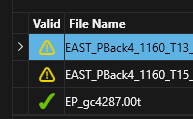
In XECUTE 3.2 a new column has been added to display the Grade Control Block validity message.
Grade control version control
Grade control data is identified within XECUTE by its ID field value. When Grade control data is uploaded that has the same ID as existing Grade control shapes it will replace those shapes with the new data. A warning is displayed if the ID of a new grade control shape already exists in the site.